
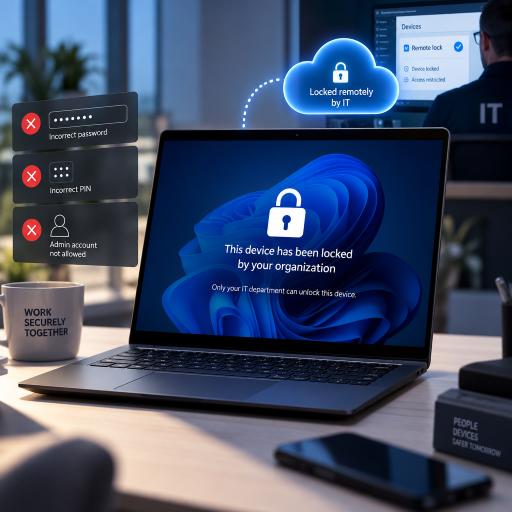
Your Windows 11 work laptop can now be locked remotely, and no password, PIN or admin account can get you back in, only IT can
Microsoft is testing a new Windows 11 security feature that gives corporate IT departments more control over missing or stolen computers. Called Remote Lock, it can prevent anyone from signing into a managed PC without deleting the files stored on it.
The capability has appeared in Windows 11 Insider Preview Build 29708.1001 within an experimental channel intended for future platform features. It remains an early preview, so availability and technical requirements could change before a wider release.
Remote Lock is designed to fill the gap between leaving a missing laptop accessible and remotely wiping it. A computer that has merely been misplaced can be secured immediately, then restored to normal use if it is later recovered.
A lock that local credentials cannot bypass
Once the command reaches the device, Windows ends active user sessions and replaces the normal sign-in interface with a locked-device notice. Passwords, Windows Hello PINs, web sign-in methods and local administrator accounts cannot remove the restriction.
Restarting the computer does not clear the lock. Disconnecting it from the internet also leaves the restriction in place. Only the organization managing the device can authorize its release through Microsoft Intune.
By default, users see a message explaining that their organization has locked the computer and that they should contact IT. Administrators can customize this screen with a reason for the action and recovery instructions, such as how to reach the company help desk.
The process does not erase documents, applications or settings. The PC remains enrolled in device management, while existing protections such as BitLocker continue to operate.
User accounts remain separate
Remote Lock applies to the computer rather than the employee’s identity. The affected user can continue signing into other authorized devices with the same account.
This distinction is important if IT suspects that account credentials have been stolen. Locking the laptop alone will not invalidate the user’s password or terminate sessions elsewhere. Administrators must separately disable the account, revoke active sessions or take other identity-security measures through Microsoft Entra ID.
IT must configure the preview manually
Intune already supports remote-lock actions on several mobile and desktop platforms, but the Windows implementation is different because it creates an organization-controlled barrier that cannot be dismissed with a local device credential.
In the current test version, administrators cannot simply press a standard Windows Remote Lock button. They must create custom configuration profiles in Intune using OMA-URI settings.
One profile sets the device’s LockState value to 1. Assigning that profile to a designated group causes enrolled computers in the group to lock during their next management check-in. A separate profile sets LockState to 0, allowing IT to unlock recovered machines by moving them into the appropriate group.
A status value helps administrators track the result:
- 0: The device is unlocked.
- 1: The device is locked.
- 2: A lock request is pending.
- 3: The process encountered an error.
Eligible systems are expected to require Microsoft Entra join, hybrid join or mobile device management enrollment. Supported editions include Windows Pro, Enterprise and Education. Documentation also identifies some older Windows and Windows Server versions, although the feature has so far been introduced through this experimental Windows 11 build.
The command depends on an Intune check-in
Remote Lock is not instantaneous when a laptop is offline. The device must contact Intune before it can receive the instruction. If a thief keeps the computer disconnected, the request remains pending until the machine reconnects.
The same limitation applies in reverse: unlocking must also be approved through Intune. A user cannot regain access independently, even if they know every credential associated with the PC.
BitLocker remains essential
Remote Lock is an access-control tool, not a complete defense against physical attacks. It does not isolate the laptop from networks, disable the Windows Recovery Environment or prevent attempts to start in Safe Mode. It also cannot stop someone from booting through external media, reinstalling Windows or physically removing the storage drive.
For that reason, Microsoft advises organizations to keep BitLocker enabled. Full-drive encryption protects stored information if someone attempts to bypass Windows or connect the drive to another computer. Remote Lock blocks ordinary sign-in, while BitLocker provides the stronger data-protection layer beneath it.
If Microsoft moves the feature beyond testing, businesses will gain a useful alternative to immediately wiping every missing laptop. IT teams could freeze a device while investigating, preserve its contents and safely restore access when an employee retrieves it—all without trusting passwords or local administrator privileges to keep corporate data secure.