
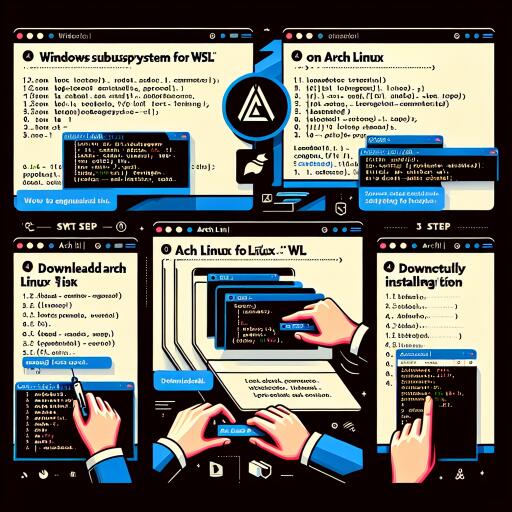
Effortless Arch Linux Setup on Windows via WSL
Welcome to an exciting journey where you can experience the versatility and power of Arch Linux directly on your Windows machine through the Windows Subsystem for Linux (WSL). With the archlinux-wsl project, monthly updated images deliver a comprehensive Arch Linux experience on WSL.
Before diving in, ensure that virtualization is enabled in your computer’s UEFI setup. Then proceed to install the Windows Subsystem for Linux from the Microsoft Store.
Get and Install the Latest Arch Linux Image
To enhance your experience, upgrade to the most recent stable or pre-release version of WSL. Use an elevated Windows command-line shell to execute the following update commands:
Once updated, grab the latest Arch Linux .wsl image. Simply double-click the downloaded file to initiate the installation or use the Windows shell for a more hands-on approach by running:
Install-ImageArchWSL
Don’t forget to set a password for your user before ending your session. If you encounter a ‘locked out’ situation, remedy it by using:
wsl --user root
This adjustment will be applied during the next session. To end your current session, just execute:
wsl --terminate
From version 2.4.10 onwards, WSL allows you to specify a default user for your distribution with the command:
wsl -d
This takes effect the next time you launch the distribution.
Enjoy Linux GUI Applications with WSLg
WSLg enables the execution of Linux applications with audio (PulseAudio) and graphical (X11 and Wayland) capabilities on WSL. If you face OpenGL falling back to the llvmpipe software renderer for Intel GPUs, simply create a symlink for libedit to rectify this.
Additionally, WSL has built-in support for interoperability between Windows and Linux environments, enabling seamless execution of Windows binaries within WSL. You can disable this feature by modifying the WSL configuration file as per your needs.
Integrating Windows Features in WSL
A variety of tools facilitate the use of Windows services and features within WSL. Notably, you can install wsl-hello-sudo-bin and execute:
wsl-hello-setup
This installer places a Windows executable in your chosen directory and stores a certificate for authentication alongside. Integrate this functionality into any configuration file you desire for Windows Hello authentication, for example with sudo:
sudo nano /etc/sudoers.d/hello-wsl
Device Passthrough with WSL 2
Being a Hyper-V virtual machine, WSL 2 supports the passthrough of devices from the host to the guest environments. To attach and mount Windows-accessible disks, identify the disk unique ID via PowerShell and carry out the mount operation with administration privileges:
For USB device sharing across other machines including WSL 2, the ‘usbipd-win’ tool can be leveraged. Install the software on Windows through the installer or the Windows Package Manager. Then, locate available USB devices and prepare them using administrator credentials.
Systemd Support and Pending Issues
The Arch Linux WSL image comes with systemd support out of the box. However, some issues might still persist that require extra steps for complete functionality. Specifically, Docker needs the root directory to be mounted with rshared propagation for optimal performance.
Stay informed about potential updates and workarounds to perfect your Arch Linux and WSL setup, ensuring a seamless development or learning experience.
Take advantage of these instructions and immerse yourself in the robust capabilities of Arch Linux right from your Windows desktop today.