
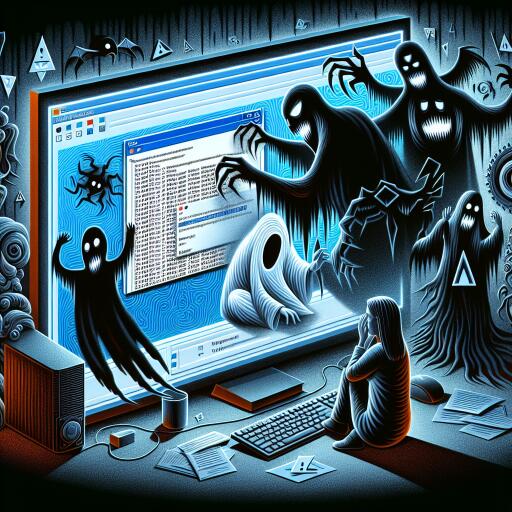

Dark patterns killed my wife’s Windows 11 installation
Late at night, the screen told us a login attempt failed with a message that sounded almost ceremonial: the system said the credentials couldn’t be verified. My partner was entering the correct PIN, yet the device refused to unlock. We restarted, hoping for a simple reboot to cure the hiccup, but the problem persisted.
We mused about server outages or online-account quirks, since she uses a cloud-backed sign-in rather than a purely local account. A quick check for service status showed nothing alarming on the server side, so we pressed on with standard troubleshooting—pinging the obvious, hoping for a straightforward fix.
The login screen offered a forgotten-PIN path, which we tried despite the PIN working elsewhere. Dialogs flickered and a prompt surfaced, asking for a security USB key we didn’t own. Dismissing it opened the option to try other methods, including a password. The password failed too, even though it worked when logging into the Microsoft account from a phone. It felt as if each path was being sabotaged by a different, conflicting rule.
In the bottom-left corner, a strange, unfamiliar account briefly appeared: something labeled as a generic “WsiAccount.” It was as if the system had conjured a ghost profile out of nowhere. We tried to proceed with account recovery options, but the experience only grew more opaque and unhelpful.
Next, we attempted to reset the PIN. The system demanded a second factor, steering us toward a phone-based verification. The SMS service it claimed to rely on wouldn’t send codes, even though the service itself appeared operational elsewhere. Frustration grew with every failed attempt to coax Windows back to a usable state.
Seeking relief, we searched the web for others facing similar locked-out scenarios. The results were a maze of partial matches and dead ends. Meanwhile, a notification popped up on the phone: OneDrive storage was full. This was odd—my wife didn’t rely on OneDrive for her daily workflow, and the warning felt out of place in the middle of a Windows 11 login crisis.
What followed was a diversion into data management. On a whim, we checked OneDrive on the phone, where a banner revealed a dramatic overuse of the free 5 GB. A new, brand-new Android device had been set up, and its cloud-photos feature appeared to be enabled by default, quietly syncing a massive library without consent. What started as a minor storage alert ballooned into a looming data-saturation problem: hundreds of gigabytes of photos and videos were being uploaded to the cloud by default.
We disabled the auto-sync, deleted the mountain of files from OneDrive, and removed the client from the PC again. Yet the login hurdle remained stubborn, refusing to yield as the root drive stayed stubbornly full. Even after we attempted to roll back recent updates, refresh recovery points, and pursue more advanced rescue steps, Windows 11 clung to the same failure mode with a chorus of confusing errors.
As the night wore on, we faced a hard truth: something deeper was at play, something that blended tight corporate controls with a user-hostile setup. A moment of clarity finally arrived—storage, not protection, was the bottleneck. The system’s stubborn refusal to accept credentials seemed to be a symptom of a nearly full root drive, a condition that could cascade into authentication failures, misbehaving recovery options, and odd on-screen prompts that felt random and opaque.
With the dawn approaching, we revisited the idea of an elevated recovery path. A casual browser search later revealed a simple-sounding diagnosis: when storage runs out, some systems glitch in ways that resemble security or identity errors. The clue was not a missing password or a wrong PIN, but a hard limit of space that had quietly shackled the entire installation. We wrestled the mystery down to a straightforward fix: free space on the root drive, then reattempt login and account recovery steps from a clean slate.
We opened an administrator-style avenue, checked the user accounts, and retried the password change through the official web portal for the Microsoft account. Once the password was updated on the web, the local login began to cooperate again. The system finally granted access, and the recovery proceeded with a calm, relief-filled sigh.
In the end, what felt like a digital catastrophe boiled down to a sequence of deliberate, user-hostile design choices—dark patterns that nudged users toward cloud services, online identities, and seemingly seamless data sharing. A vendor’s default cloud-sync feature, followed by a cloud-service reinstallation on the PC, created a data avalanche that the local storage couldn’t handle. The absence of warnings, the ominous new account at the login screen, and the silent data churn all pointed to a design philosophy that prioritizes ongoing monetization over user clarity and control.
From this, the takeaway is plain: when a device behaves as if it’s actively steering you toward a particular online identity and data flow, tread carefully. If you can, limit automatic cloud integrations, monitor storage capacity closely, and ensure you retain a clearly defined offline workflow. It’s easy to accept “smart” defaults, but they can spiral into situations where your own data becomes the unexpected victim—and the sign-in screen becomes a trap rather than a doorway.
Ultimately, we managed to restore access and regain a sense of control by removing the unwanted cloud-sync cascade, consolidating data, and revalidating the local versus online account linkage. The incident stands as a cautionary tale about the quiet, often invisible mechanisms that push users toward persistent online identities and data-sharing habits. If you’re weighing a switch away from a platform that leans on these patterns, the story suggests it’s worth considering a path that keeps your data local, your prompts honest, and your login screen less intrusive.