
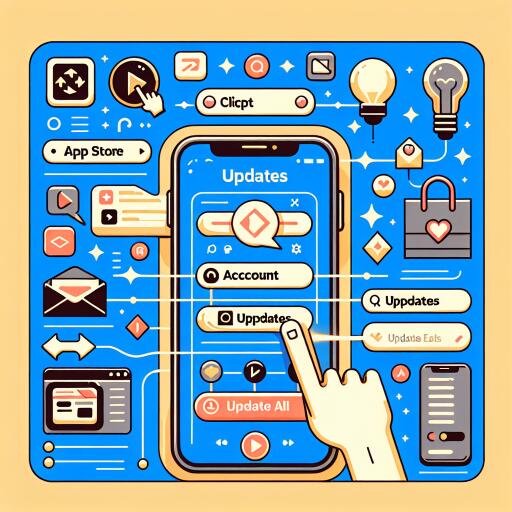

How to update apps on your iPhone in iOS 13
iOS 13 reshuffles where app updates live, hiding the old Updates tab and steering you toward a new flow. Whether you prefer to manually approve every patch or let your iPhone handle it in the background, here’s the streamlined guide to finding, triggering, and understanding app updates on iPhone (and iPod touch) running iOS 13.
Manually update apps via your profile
- Open the App Store.
- Tap your profile picture in the top-right corner.
- Pull down on the page to refresh the list of pending updates.
- Under “Available Updates,” tap Update All, or tap Update next to individual apps.
- Recently updated apps will appear in “Updated Recently,” so you can confirm what just changed.
Tip: If you don’t immediately see any updates, give it a moment after pulling to refresh. The App Store often needs a quick check-in with Apple’s servers.
Faster access with a long press
From the Home screen, press and hold the App Store icon to open the quick actions menu, then choose Updates. This jumps straight to the account screen where you can refresh and update as above.
Turn on automatic updates
If you’d rather not micromanage, iOS 13 can keep apps current on its own:
- Go to Settings.
- Tap iTunes & App Store.
- Toggle on App Updates under Automatic Downloads.
Want updates even when you’re away from Wi‑Fi? In the same menu, allow automatic downloads over cellular. Keep in mind that this can use mobile data and affect battery life.
See what’s new in an update
- From the App Store account screen, tap More beside an app’s update note to expand its changelog.
- Or open an app’s page in the App Store and scroll to Version History to read detailed release notes, including previous versions.
This is a great way to spot fresh features, bug fixes, or performance tweaks—handy if you’re tracking changes for your favorite games or creative tools.
Not seeing updates? Try these fixes
- Refresh again: On the App Store account screen, pull down to force a new check.
- Check your connection: Use Wi‑Fi or allow cellular downloads for updates.
- Disable Low Power Mode: Go to Settings > Battery and turn it off; it can pause background activity.
- Verify Apple ID: Make sure you’re signed in with the account that downloaded the apps.
- Free up storage: Low space can block updates; remove unused apps or large files.
- Restart your iPhone: A reboot often clears stuck queues.
- Confirm date & time: Settings > General > Date & Time > Set Automatically.
Why the Updates tab disappeared
In iOS 13, the old Updates tab makes way for Arcade, Apple’s game subscription hub. It’s a clear signal that Apple expects most users to rely on automatic updates. The manual controls didn’t vanish—they moved to your profile panel—so power users and curious players can still review changelogs and pick updates on their own schedule.
Quick recap
- Manual updates: App Store > profile picture > pull to refresh > Update All or update individually.
- Shortcut: Long‑press the App Store icon, then tap Updates.
- Automatic updates: Settings > iTunes & App Store > App Updates (toggle on).
- Read release notes: Expand “More” on the account screen or check Version History on an app’s page.
- Troubleshoot: Refresh, confirm connection and Apple ID, disable Low Power Mode, free storage, reboot.
Once you know where Apple tucked the controls, staying on top of app updates in iOS 13 is quick—whether you’re chasing day‑one patches for a new game or letting background updates do their quiet work.