
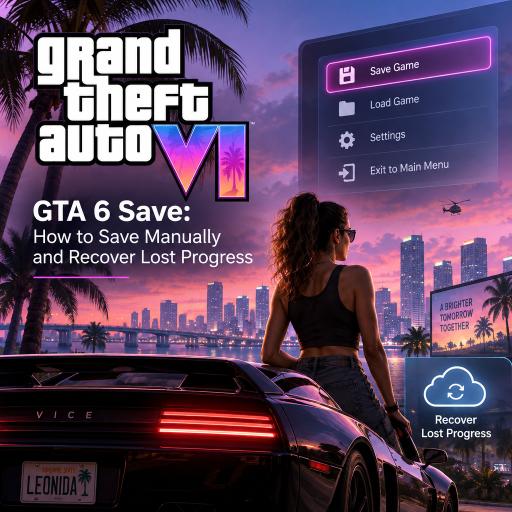
GTA 6 Save: How to Save Manually and Recover Lost Progress
Losing hours of progress in GTA 6 can turn an eventful trip across Leonida into a frustrating replay. Although the game includes autosaving, unexpected shutdowns, crashes, or interrupted sessions may cause recent progress to disappear.
The safest approach is to create manual saves regularly and maintain more than one backup file.
How to Save Manually in GTA 6
On PS5, you can create a manual save directly from the pause menu while exploring in free roam:
- Press the Options button on the DualSense controller.
- Open the Game section.
- Select Save Game.
- Choose an available slot.
- Confirm the save and wait for the process to finish.
Manual saving may be unavailable during missions, scripted sequences, or certain activities. If the option is disabled, complete or leave the current objective and try again after returning to free roam.
Use Multiple Save Slots
GTA 6 provides multiple slots for manual saves. Rather than repeatedly replacing one file, rotate between several slots. This gives you older checkpoints to return to if the newest save becomes unavailable or places you in an unwanted situation.
A practical setup is to keep:
- One save for your latest story progress.
- One backup created before major missions.
- One older file in case you need to recover from a mistake or technical problem.
How to Recover Lost Progress
If recent gameplay is missing, open the pause menu and check the available files under the game’s loading options. Compare timestamps and completion details to find the newest usable manual save or autosave.
PS5 players should also check whether their console has a synchronized cloud copy. Avoid immediately overwriting existing data, as doing so could replace an older but recoverable save. If the local and cloud versions differ, carefully review their dates before choosing which file to use.
How to Protect Your GTA 6 Saves
- Create a manual save after lengthy missions or major purchases.
- Save before beginning an important story objective.
- Keep several backup files instead of relying on one slot.
- Do not turn off the console while the saving indicator is visible.
- Confirm that cloud synchronization is enabled when available.
- Close the game normally before shutting down or restarting the PS5.
Autosave is convenient, but it should not be your only safeguard. A quick manual save at the end of each session can greatly reduce the risk of having to repeat hours of gameplay.