
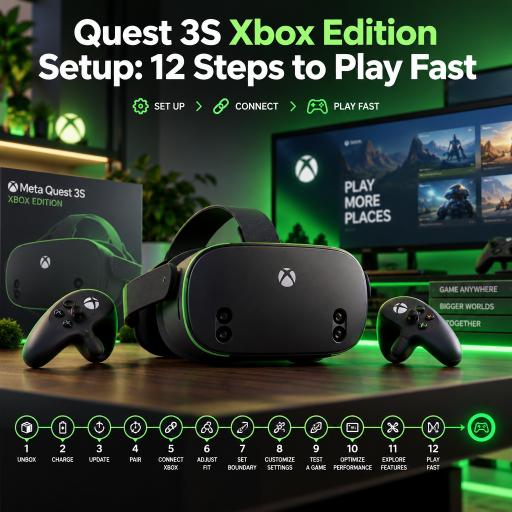
Quest 3S Xbox Edition Setup: 12 Steps to Play Fast
Setting up a Quest 3S for Xbox cloud gaming is straightforward, but account eligibility, controller pairing and subscription activation can cause delays. Follow these 12 steps in order to get from unboxing to your first streamed game in roughly 45 minutes.
Important: The standard Quest 3S and Xbox Nano Controller bundle is different from the limited-edition Quest 3S Xbox Edition released in 2025. Confirm which package you own before redeeming subscriptions or comparing prices.
What You Need
- A Meta Quest 3S and its Touch Plus controllers
- An Xbox-compatible Nano controller or another supported gamepad
- A Meta account and Microsoft account
- Fast 5 GHz or 6 GHz Wi-Fi
- A valid payment method for subscription activation
- A smartphone running the Meta Horizon app
Step 1: Verify the Package
Check the product name, storage capacity and included accessories on your receipt. The newer bundle contains a standard 128GB Quest 3S, an Xbox Nano Controller and a limited Game Pass Ultimate trial for eligible customers. The older Xbox Edition uses a custom black-and-green headset and may include different benefits.
The Nano may arrive separately, so review all tracking numbers before reporting a missing controller.
Step 2: Record the Return Deadline
Copy the return date directly from your retailer’s receipt. Do not assume every store follows Meta’s policy. Keep the packaging until you have tested the display, controller, Wi-Fi performance and subscription code.
Step 3: Inspect and Charge Everything
Examine the headset lenses, facial interface and controllers for damage. Confirm that the glasses spacer and charging accessories are present. Charge the headset and Nano before setup; low controller power can interrupt Bluetooth pairing.
Step 4: Activate and Update the Quest 3S
Open the Meta Horizon app on your phone, sign in and add the headset. Complete the safety and boundary prompts, then install every available Horizon OS update. Restart the headset and check again until no updates remain.
For Xbox play, create a seated boundary and connect to the fastest available Wi-Fi band. A strong local connection is essential because cloud games arrive as streamed video rather than running directly on the headset.
Step 5: Pair the Xbox Controller
The Nano controller may not be paired out of the box. Put it into Bluetooth pairing mode, open the Quest Bluetooth settings and select the controller. Menu names can vary between software releases, so look for Bluetooth or connected-device options.
Temporarily disable Bluetooth on nearby phones, computers and consoles. Otherwise, the controller may reconnect to a previous device instead of the headset.
Step 6: Test Every Input
Check both analog sticks, stick clicks, triggers, bumpers, D-pad, face buttons and menu controls. Watch for stick drift or inputs that fail to register. Document defects immediately with a photograph or video while the return window is open.
Step 7: Redeem Game Pass in the Correct Order
If your package includes a Game Pass Ultimate trial, redeem it before activating any secondary Game Pass benefit offered through Meta Horizon+. Using another introductory offer first could affect eligibility.
Sign in with the Microsoft account that will own the subscription. Bundle trials may be limited to customers who have never held Game Pass. A payment method is normally required, and recurring billing may activate automatically. Check the redemption screen for the exact expiration date, trial length and renewal price.
Step 8: Install Xbox Cloud Gaming
Open the Meta Horizon Store, find Xbox Cloud Gaming and install it. Launch the app and use the same Microsoft account that redeemed Game Pass. Verify that the correct subscription appears before choosing a game.
You do not need an Xbox console. Supported games stream over the internet, although availability can vary by region, device and subscription tier.
Step 9: Run a Short Test Game
Choose a familiar racing, action or platform game and play for about ten minutes. These genres make latency easy to detect. Evaluate:
- Image quality: Text and fine details should remain readable.
- Response: Button presses should produce consistent reactions.
- Stability: Watch for freezes, blockiness or sudden resolution drops.
- Comfort: Adjust the strap and glasses spacer if necessary.
Xbox games appear on a large virtual screen; they do not become immersive VR experiences.
Step 10: Improve the Network
If streaming feels poor, test close to the router. Use 5 GHz or 6 GHz Wi-Fi, pause large downloads and move away from interference such as microwaves or crowded wireless equipment. Restart both the headset and router after making changes.
Consistent latency matters more than one impressive speed-test result. If performance worsens only during evening hours, internet congestion may be responsible.
Step 11: Track Cloud-Play Time
Review the current cloud-use allowance shown in your Xbox account rather than assuming access is unlimited. Record the start and end of each session, especially during the trial. Menus and idle streaming may still contribute to usage.
Also monitor battery drain. The Quest 3S is designed for sessions lasting a few hours, but screen brightness, Wi-Fi conditions and background features can shorten runtime.
Step 12: Decide Whether to Keep It
Before the return deadline, answer four questions:
- Does every controller input work?
- Is streaming responsive during your normal gaming hours?
- Do you qualify for and value the included trial?
- Is the bundle cheaper than buying the headset and controller separately?
If the controller is defective or cloud play remains unstable on an otherwise reliable network, begin the return process early. Keep screenshots, test results and packaging as evidence.
Quick Fixes for Common Problems
- Controller will not pair: Charge it, remove old pairings and restart both devices.
- Xbox app ignores the controller: Close the app completely, reconnect the gamepad and relaunch.
- Subscription is missing: Confirm that the app uses the Microsoft account that redeemed the code.
- Code is rejected: Check eligibility, region, purchase date and expiration details.
- Video looks blocky: Move closer to the router and switch to a less congested Wi-Fi band.
- Input lag is excessive: Stop other network activity and test at another time of day.
- A game is unavailable: Confirm cloud support, subscription tier and regional availability.
Final Setup Checklist
Update the headset, pair and test the controller, redeem Ultimate before secondary promotions, install Xbox Cloud Gaming and complete a short network test. Once those tasks pass, the Quest 3S becomes a convenient console-free way to play supported Xbox games on a giant virtual display.